Your First Search with Relab Premium
How to search for properties in Relab Premium
⚠️ You must have access to Relab Premium Plan to use this feature.
- Open Relab Premium by clicking on the Waffle icon at the top of the home page
- To set up your farm area, you can either search a suburb or go directly to the map to draw your area
Option A: Draw directly on the map
- Click Map View to open a map of New Zealand
- Zoom into your desired location
- Click on the Polygon button to use the drawing tool to outline your target area on the map
- Once you've closed the shape on the map, click the black Search button
Option B: Start with a suburb search
- Type a suburb name into the search box and hit Search to display a list of all properties in that suburb
- To refine your farm area boundaries click the Map button on the top right of the property list
- Use the Polygon button to draw additional areas or exclude certain streets
- Adjust the boundaries to include/exclude specific areas as needed
- Click the black Search button to update your property list
🔥 Hot Tip: When drawing, you can visually check for optimal opportunities on the map using different map views
How to save your search or farm area:
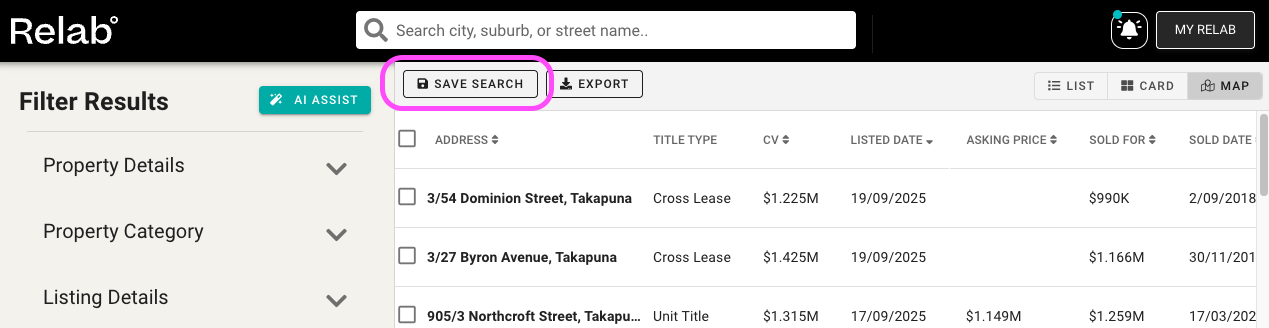
- Click the Save Search button at the top of the property list
- Name it clearly (e.g., "Farm Area 1 - Ponsonby North")
- Enable notifications to get alerts for any activity
- Click Save
How to view your saved lists or farm area
To review and manage all your saved searches in Relab premium:
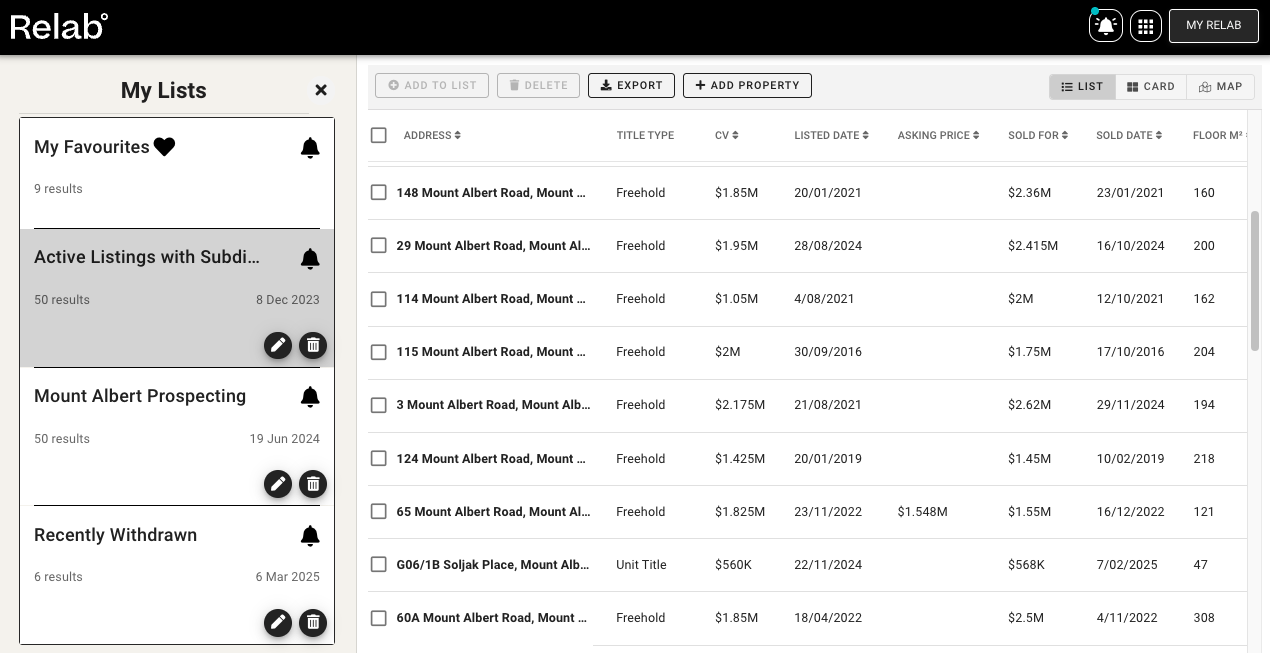
- Click My Relab at the top right of your screen
- Click My Lists to view your saved searches or farm areas

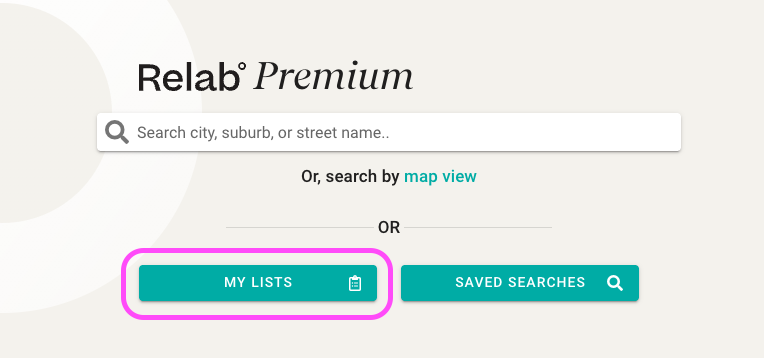
Or if you open Relab Premium for the first time you can click on My Lists rather than doing a new Relab Premium Search
Here you can:
- View all your saved searches
- Check recent notifications and activity
- Rename or delete searches
- Click into any list to view current properties