Manager overview: what you can do and how to check your access
Managers look after a branch's Relab account: the team, the agents' CMA profiles and the CMA templates. This article covers what the manager permission allows, how to check you have it, and who to contact when something is out of reach.
Check you have manager access
Click the waffle icon (nine dots) in the top right corner of Relab.
Look for My Team in the menu.
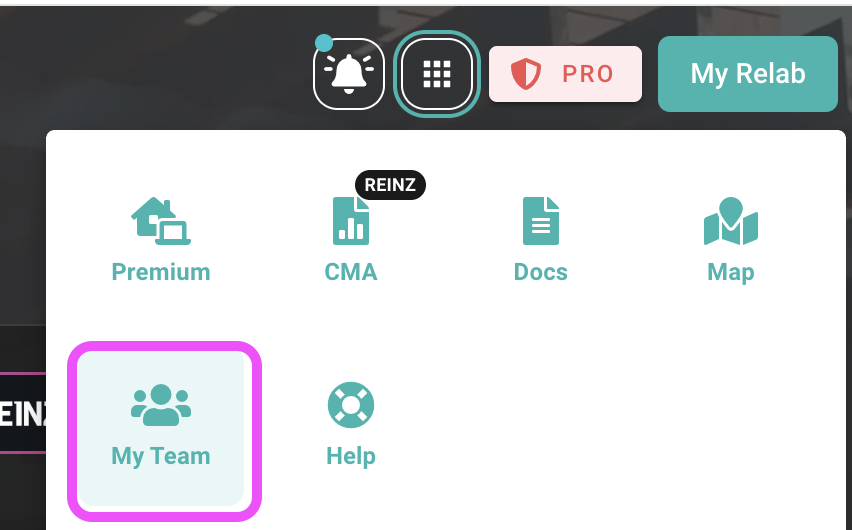
If you can see My Team, you have the manager permission. If you can't, ask the authorised person on your service agreement to email invoices@relab.co.nz to request it for you.
What the manager permission gives you
My Team — team data, including the CMA templates your team has created and what is in them.
Agent CMA profiles — see and edit the CMA profile of each agent on your team.
Team activity — a high-level view of each team member: when they last logged in and how many CMAs they have produced over a period you choose.
CMA templates — access to the templates of the branches you are assigned to.
Some features, such as editing a team member's template, also need a Relab Teams or Enterprise plan. If you don't see an option you expect, contact support@relab.co.nz to check your access.
Which branches can you see?
A manager can be assigned to one branch, to several branches under the same franchise, or to the entire franchise.
If you are assigned to more than one branch, a branch drop-down appears at the top of each My Team view and in the CMA template list. It starts on your own branch.
If you are assigned to one branch, you won't see the drop-down.
If the branches you can see aren't right, contact support@relab.co.nz.
What you can't do yourself
Reset another user's password. Each user resets their own using Forgot Password? on the login page.
Add or remove users directly. Submit a request instead (see below).
Edit the brand-level template. Relab applies a brand-level template so that large brands have a template in Relab. It isn't accessible to edit by any user, including managers.
Who to contact
Add or remove a user — email invoices@relab.co.nz.
Give someone the manager permission — email invoices@relab.co.nz from the authorised person on your service agreement.
Set up centralised title ordering — email invoices@relab.co.nz.
Template help, data pages or a bug — email support@relab.co.nz or click Help then Raise an Issue in the waffle menu.
Team training — contact your account manager.
Next steps
Viewing team members — plan, expiry and login activity
Adding and Removing Team Members — how to submit a request
Managing Team CMA Templates — edit templates for your branch and your team
❓ FAQs
Why can't I see My Team?
Your account doesn't have the manager permission. Ask the authorised person on your service agreement to request it.
Is a manager the same as an admin?
Yes. Some older articles and screens still say admin. It is the same permission.
Can a branch have more than one manager?
Yes. Email invoices@relab.co.nz from the authorised person on your service agreement.
Last updated: 14 October 2026