Set up and manage your team's agent profiles
⚠️ This feature requires Manager access on a Relab Teams or Enterprise account.
Agent profiles feed the details that appear in every CMA: name, contact details, headshot and more. If a profile is empty, those fields come through blank. Set profiles up before agents start using Relab.
Find who needs a profile and set it up
The quickest way is from the Team Members dashboard. It shows how many CMA profiles each person has, so you can see at a glance who hasn't been set up.
Click the waffle icon and select My Team. Team Members opens first.
If you manage more than one branch, choose the branch from the drop-downs at the top. You can also use Search member to find one person.
Look at the CMA Profiles column. It shows the number of profiles each team member has.
A 0 means that person has no profile set up yet. Click it to set up their profile.
Complete the fields and save.
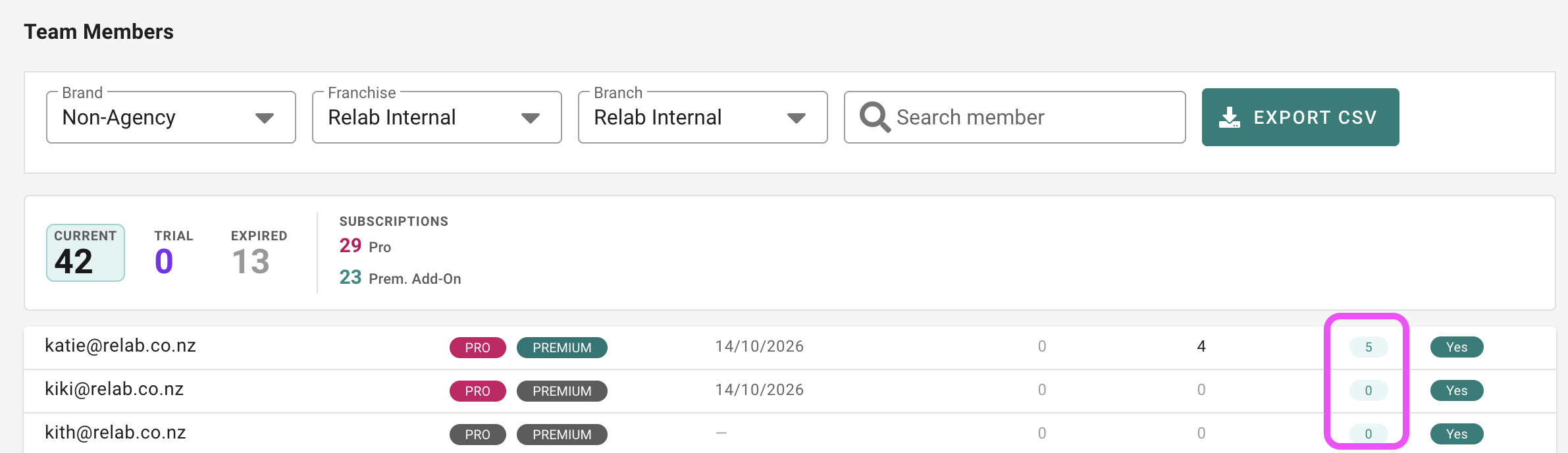
Check this column before agents start using Relab, and again whenever someone new joins.
Edit a profile or add another one
In My Team, click Team Profiles in the left sidebar.
Choose the branch, then the team member.
Click Manage Profiles to see every profile they have. Existing profiles appear top right.
Select a profile to edit it, or click New Profile, complete the fields and click Save.
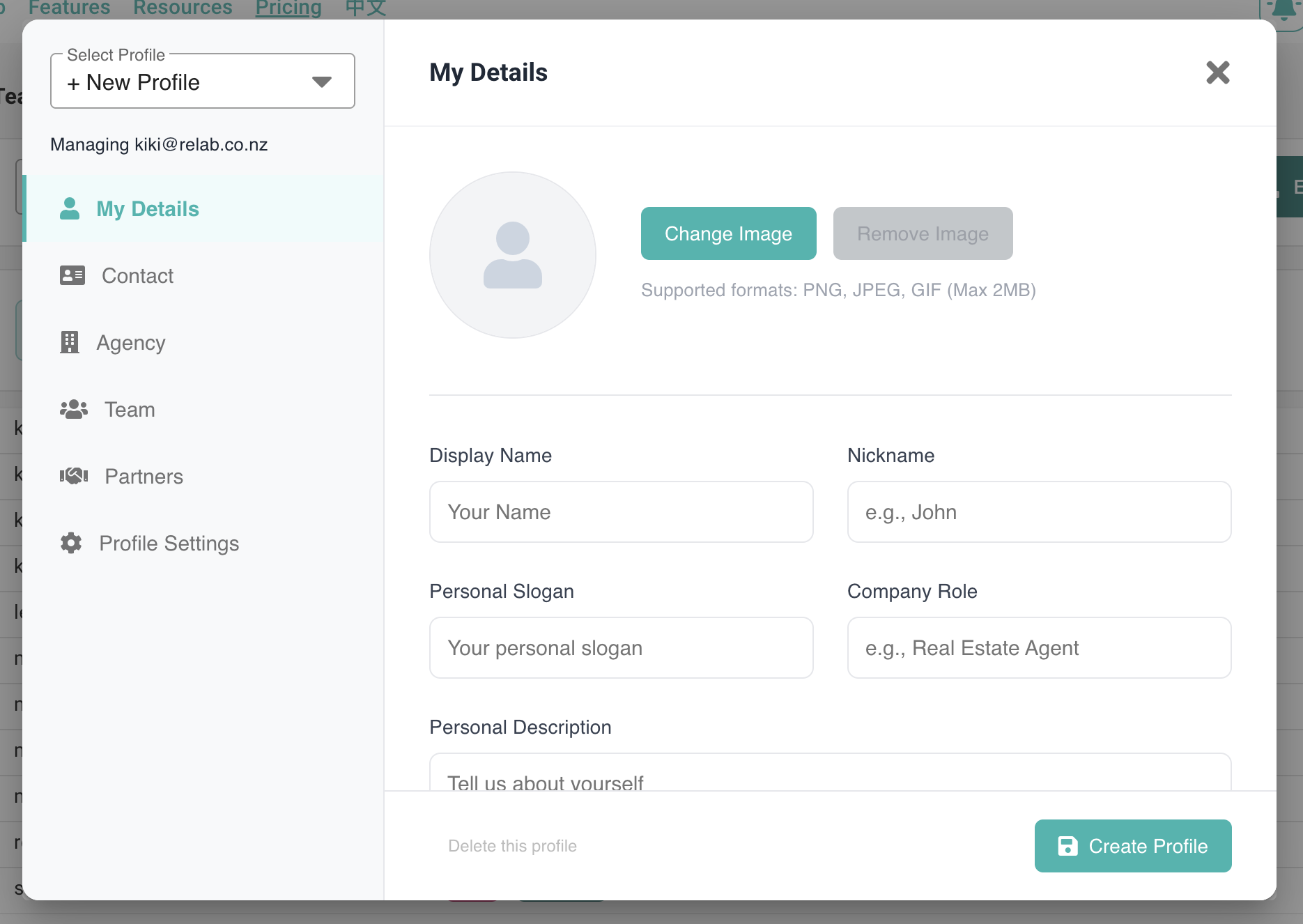
Which fields to fill in
Every profile field can appear in a CMA, but a field only comes through if the CMA template is built to use it. Name and contact details come through as standard. Extras such as testimonials or website links only appear if the template includes them.
Fill in the fields your template uses and skip the rest. When your templates are ready, Relab can walk your template owner through every dynamic field so it is clear which profile fields need to be filled in. Contact your account manager to arrange this.
Solo agents, partnerships and teams
Solo agent — their own details and contact information.
Partnership (two or three people) — use the Partner tab to add a second and third partner. Each agent sets themselves as primary on their own account and lists the others as secondary.
Team (more than three people) — set up a named Team rather than adding more partners.
Good to know
There is no bulk upload. Each profile is created in Relab. You can share the work across your office's managers.
Profiles are not created automatically when a user is added. Set them up for each salesperson, and their PA, before they start.
Profiles don't depend on your CMA templates being finished, so you can start early.
When someone leaves
Submit a removal request using the User Change Requests Form, or email invoices@relab.co.nz.
If you need their CMAs, templates or saved work moved to a colleague, say so in the same request. Do this before the account is deactivated.
Next steps
CMA Agent Profile — what agents see and edit themselves
CMA Dynamic Text Fields — how profile details reach the CMA
Adding and Removing Team Members — the request process
❓ FAQs
How do I know who hasn't set up a profile?
Open My Team and check the CMA Profiles column on the Team Members dashboard. A 0 means no profile has been set up.
Why would someone have more than one profile?
Usually because they work both solo and as part of a team, so they have a personal profile and a separate team profile.
Why is an agent's headshot blank in their CMA?
The image pulls from their profile. Add a headshot to their profile.
Can I import profiles from another system?
No. Create each profile in Relab.
Last updated: 14 October 2026