Create a CMA for a property not found in Relab
Use Create Manual CMA to start a Comparative Market Analysis (CMA) for a property that does not appear in Relab's database.
Not sure which guide you need? If the properties are in Relab and you want one CMA that covers several of them, see CMA for Multiple Subject Properties. If the property does not appear in Relab at all, follow the steps below.
Overview
This applies to newly subdivided units that have not yet been assigned a title, properties with unregistered addresses, or any property you cannot locate through the standard search. You draw the boundary on the map and enter the property details manually, then proceed through the CMA as normal.
How to create a manual CMA
Step 1: Open the Create New CMA dialogue
Go to CMA Centre and click Create New CMA.
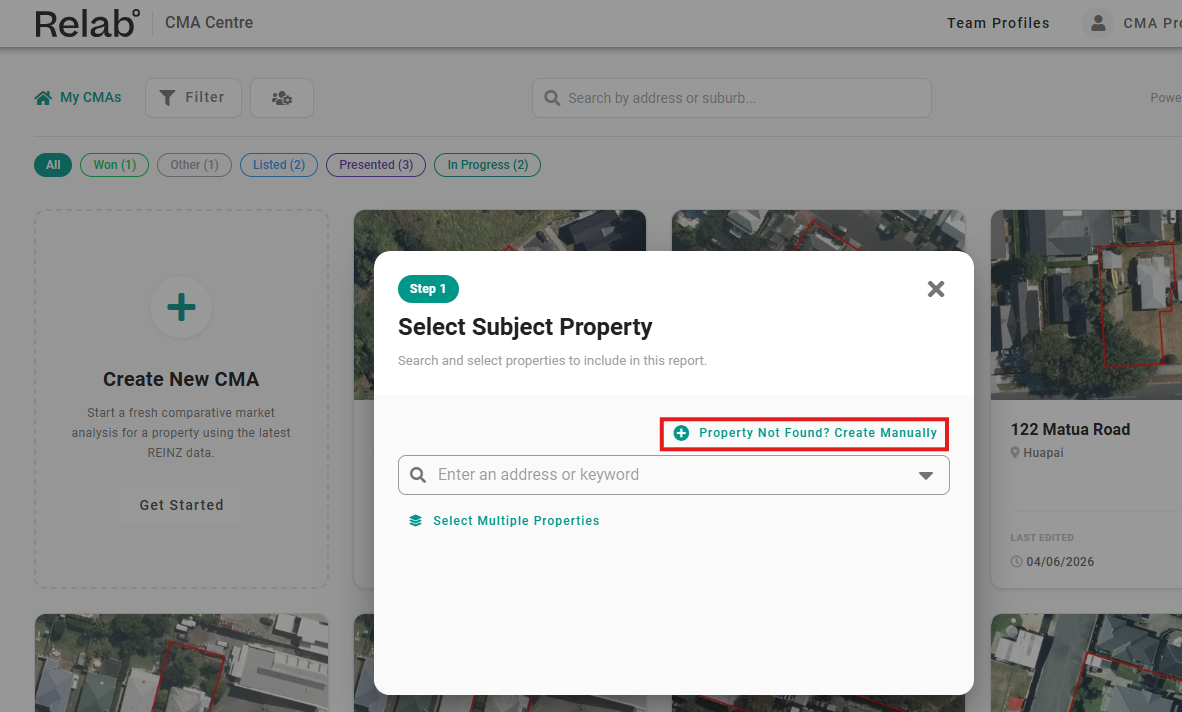
Step 2: Select Property Not Found? Create Manually
In the Select Subject Property dialogue, click Property Not Found? Create Manually above the search bar. The Create Manual CMA dialogue opens, showing a two-step process: Locate Property and Property Details.
Step 3: Locate the property on the map
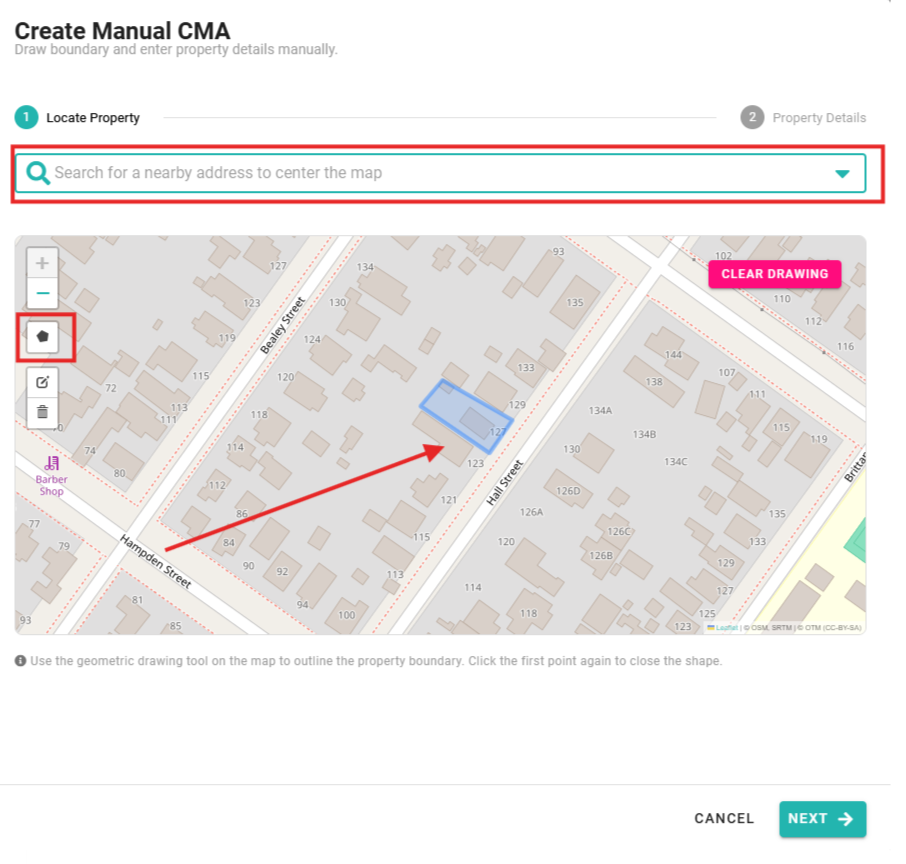
In the Locate Property search bar, enter the address of a neighbouring property to zoom the map to the right area. For example, if you need to create a CMA for 10 Example Street, enter 11 Example Street to centre the map nearby.
Step 4: Draw the property boundary
Click the geometric drawing tool on the left side of the map to start drawing. Click each corner of the property boundary to place points, then click the first point again to close the shape. The completed boundary appears as a shaded polygon on the map.
Step 5: Proceed to property details
Click Next at the bottom right of the dialogue. The view moves to Property Details.
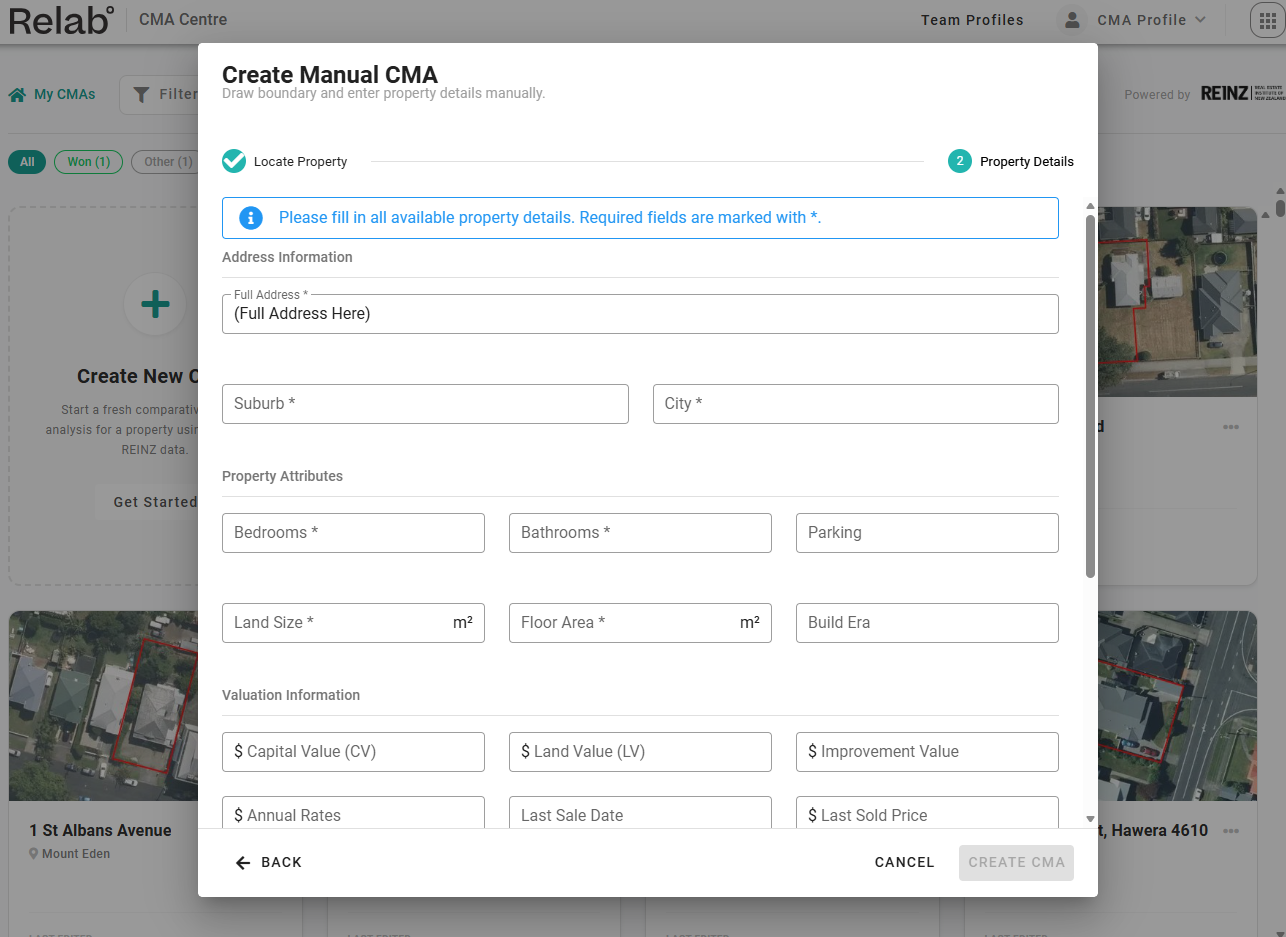
Step 6: Enter the property details
Fill in the fields for the property. The full address, suburb, and city are required. The remaining fields are optional but will help with the accuracy of your CMA:
Bedrooms and Bathrooms
Property attributes (land area, floor area, property category)
Valuation information
Building details
Ownership and Legal information
Step 7: Create the CMA
Click Create CMA at the bottom of the dialogue. Relab opens the Select Comparables page, where you continue the CMA as you normally would.
❓ FAQs
Do I need to fill in all the property details?
Only the full address, suburb, and city are required. You can leave other fields blank if you do not have the information, though adding bedrooms and bathrooms will make your comparable filtering more accurate.
Will the manual CMA appear in my CMA list like a normal one?
Yes. Once created, the manual CMA appears in your CMA Centre list alongside all your other CMAs. You can open, edit, share, and export it in the same way.
Can I edit the property details after creating the CMA?
Yes. Open the CMA and go to Update Property Details to update bedrooms, bathrooms, and other fields at any time.
What if I want one CMA for several properties?
If the properties are in Relab, select them together on the map. See CMA for Multiple Subject Properties.
Related articles
Last updated: 15 October 2026