Adding a Watermark to a CMA Page
Add a watermark such as "Confidential" or "Draft" to any page in your CMA so it can't be mistaken for a final version or passed on. The watermark appears in the editor and in the downloaded PDF.
When to use a watermark
You're sharing a draft appraisal for review before it's final
A page contains information that shouldn't be forwarded, such as pricing advice or owner details
You want to label a page for internal use only
How to add a watermark
Open your CMA from the CMA Centre
Scroll to the page you want to watermark
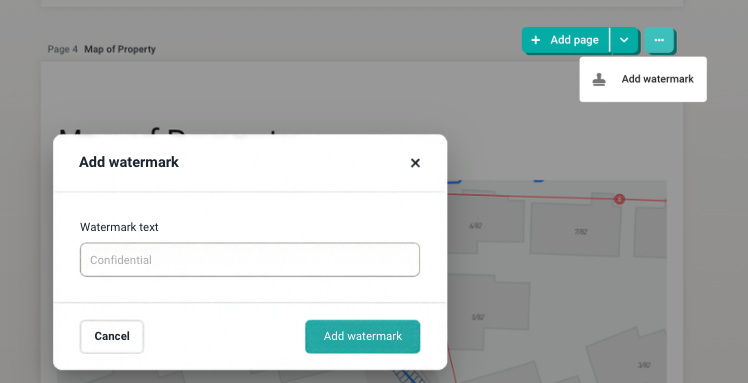
Click the ⋯ button at the top right of the page, next to Add page
Select Add watermark
In Watermark text, type the text you want to show, for example "Confidential" or "Draft"
Click Add watermark
Repeat for each page you want to mark. Watermarks are added one page at a time.
How to change or remove a watermark
Scroll to the page with the watermark
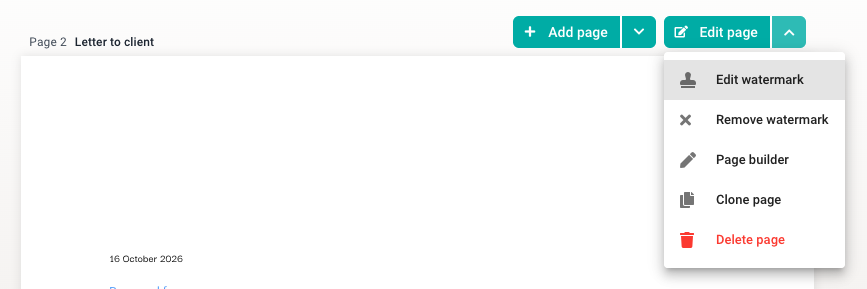
Right-click the ⋯ button at the top right of the page
Select Remove watermark or Edit watermark
Next steps
Customise your CMA — reorder pages, update agent details and add images
Sharing a CMA with clients — download your CMA or send a shareable link
CMA Collaboration — share a draft with your team before it goes to the vendor
❓ FAQs
Does the watermark show in the PDF?
Yes. The watermark is included when you download the CMA as a PDF.
Does the watermark show on the digital CMA link?
Yes.
Can I watermark every page at once?
Yes, watermarks are applied per page.
Will the watermark be saved to my template?
Yes, watermarks carry over on saved templates.
Last updated: 16 October 2026