Auto-collaborate on CMAs
In this article
In this article group
Auto-collaborate adds the same team members to every new CMA you create, so you don't have to add them one by one. It suits PAs, partners and teams who work on CMAs together regularly.
Set up auto-collaborate
Open the CMA Centre.
Click the cog icon in the top right corner and select Auto-collaborate settings.
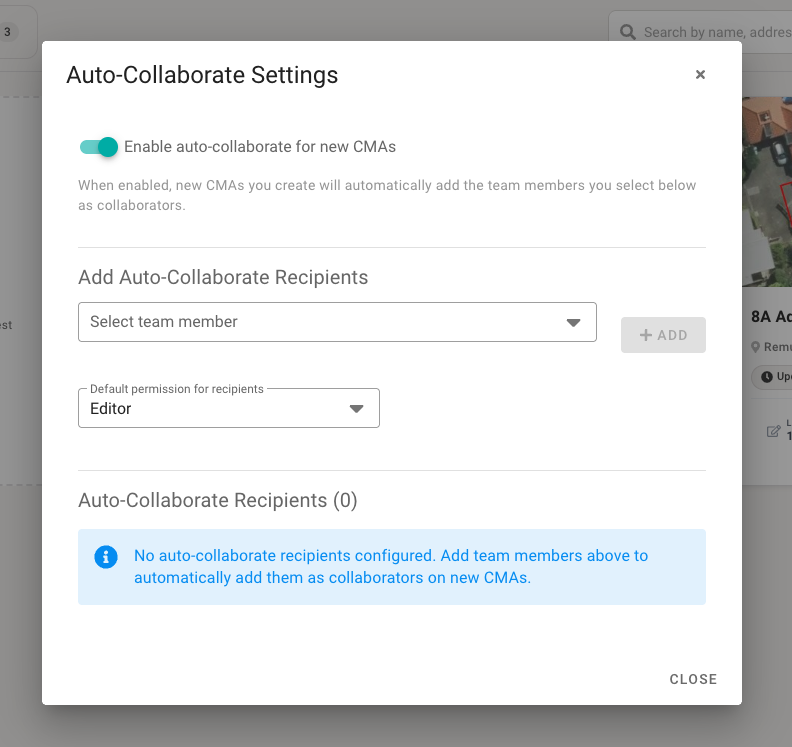
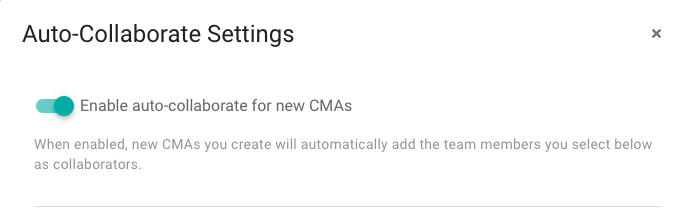
Turn on Enable auto-collaborate for new CMAs.
Pick the person from Select team member.
Choose their permission from Default permission for recipients:
Editor (recommended): they can make changes to the CMA.
Viewer: they can open the CMA but can't change it.
Click + ADD. The person now appears under Auto-Collaborate Recipients.
Repeat steps 4–7 for each team member, then click Close.
What happens next
From now on, each recipient is added as a collaborator on every new CMA you create. They're also notified when the CMA is created. [VERIFY: notification method, e.g. email or in-app]
Auto-collaborate only applies to CMAs created after you set it up. To add someone to an existing CMA, see CMA Collaboration.
Where collaborators find shared CMAs
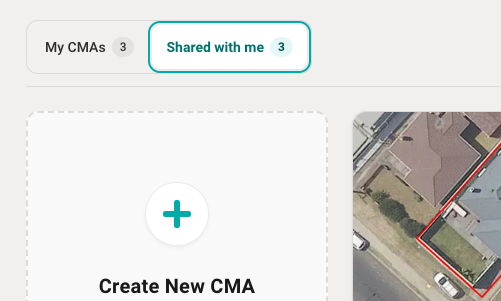
The CMA Centre has two tabs:
My CMAs: CMAs you created.
Shared with me: CMAs other people created and added you to.
As an auto-collaborate recipient, you'll find your teammate's CMAs under Shared with me.
Next steps
CMA Collaboration — add collaborators to a single CMA, set permissions and leave instructions
Sharing a CMA with clients — download your CMA or send a shareable link
❓ FAQs
Who is auto-collaborate for?
PAs and teams who work on CMAs together on a regular basis. If you only work with someone now and then, add them to that one CMA instead.
Should I choose Editor or Viewer?
We recommend Editor, so your PA or teammate can update the CMA for you. Choose Viewer if they only need to see it.
Will my existing CMAs be shared?
No. Auto-collaborate only applies to new CMAs you create after setting it up.
How do I stop auto-collaborating with someone?
Open Auto-collaborate settings and remove them from the Auto-Collaborate Recipients list. To stop it for everyone, turn off Enable auto-collaborate for new CMAs.
If my PA sets up auto-collaborate, will I be added to their CMAs?
Only if your PA adds you as a recipient. Each person's settings apply only to the CMAs that person creates.
Last updated: 30 October 2026