Best practice for building CMA templates
A good template means every agent starts their appraisal from something almost finished: on-brand, filled in automatically and easy to personalise. This guide covers the habits that matter most and the mistakes we see most often. For step-by-step instructions, see CMA Template Management: Guide for Admins and Marketing.
1. Understand the template levels before you start
Templates pass down from one level to the next. Each level starts from the one above it.
Brand: set up by Relab for large brands. No user can edit it.
Franchise Templates: every agent in the franchise can see these.Your master template goes here if you have multiple branches.
Branch Templates: every agent in the branch can see these. Your master template goes here if you have one branch.
My Templates: an agent's own saved copy.
Client CMA: the finished document for the vendor.
Avoid losing work when building templates
Changes you make in the CMA editor only reach a template when you click Save as New Template. Auto-save saves the CMA you're working in, not the template.
Never load another template into the CMA before you click Save as New Template. Loading a template replaces the pages in the CMA, and your unsaved work is lost for good.
Save at the right level. A master template saved to My Templates is only visible to you, not your branch.
Saving always creates a new template. Give each version a clear name, such as "Residential – Oct 2026", and archive the old one instead of deleting it.
When an agent saves a branch template as their own, their copy is separate. Later changes to the branch template don't reach it. Plan your updates with that in mind (see section 8).
2. Choose the right way to add a designed page
There are two ways to bring in a page you designed in Canva or InDesign, and they do different jobs.
Upload PDF (in the CMA editor)
Adds a fixed page. Agents can't edit anything on it, and dynamic fields can't be added.
Best for pages that are the same in every CMA: marketing schedules, monthly stats and brand filler pages.
Background in the Page Builder
Imports your design as the page background. You then add text boxes, images and dynamic fields on top.
Agents can edit any element you turn Quick Edit on for.
Best for pages that have a complex design or special imagery but change per agent or per property: sales method where users need to note changing method, vendor journey or marketing schedules where users need to alter costs.
Rule of thumb: if anything on the page should change per agent or per property, import the design as a background in the Page Builder, not with Upload PDF.
3. Decide what agents can change with Quick Edit
Quick Edit is set separately for each element, for both text and images.
Open the page in the Page Builder and select the element.
In the right-hand panel, tick Quick Edit to let agents edit it. Untick it to lock it.
Click Save as New Template so the change applies to every CMA made from the template, not just this one.
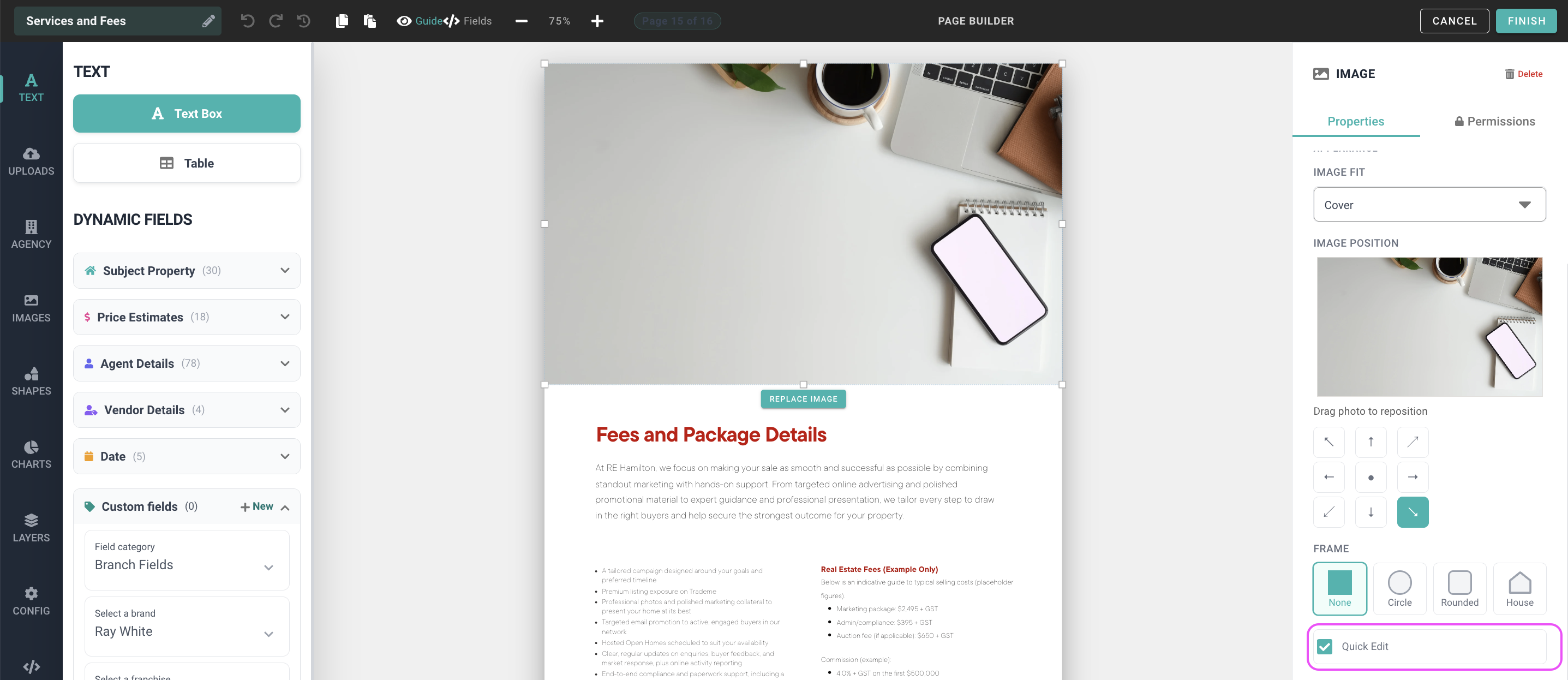
Lock: logos, banners, header images, disclaimers and brand headings.
Open: personal bio, client letter body and case study text.
Placeholder images: turn Quick Edit on so agents can add their own photo.
Dynamic images (such as the agent headshot): agents can replace these when Quick Edit is on, but it's better for them to update the image in their CMA Agent Profile. That keeps the field dynamic, so the new photo appears in every CMA automatically.
Show toolbar: for text only. Turn it on just where text length varies a lot. Anywhere else, it lets agents change fonts and break consistency.
4. Size text boxes for the longest realistic text
Text that doesn't fit inside a text box is cut off in the CMA. Size every box for its longest likely content, not the sample text you designed with.
Watch dynamic fields. Their length changes from property to property. The owner's name is the most common problem: one owner versus several owners or a trust can be very different lengths.
Test before you save. Paste in a long bio, or preview the template on a property with a long owner name and address, then check the PDF.
Set the font, size and line height yourself, and leave Show toolbar off so the formatting stays consistent.
Leave padding so text doesn't run into design elements on the background.
5. Use dynamic fields instead of typing details in
Click into a text box and type @.
Choose a field. The preview shows its value for the current property.
Use fields for agent names, contact details, the address, the date and the price range. Don't type these in.
Build fields into sentences, for example: Kind regards, {{Agent Nickname}} or {{Prepared for}} {{Date}}.
A field fills in only when its data exists. If an agent field shows blank, that agent's CMA Agent Profile is usually incomplete.
For dual-agent versions, clone the page and use the second agent fields. Don't edit the single-agent page.
For every available field, see CMA Dynamic Text Fields.
6. Set a standard page order
Agree on one standard order for the branch so every CMA tells the story the same way. We recommend:
Front cover → Client letter
Property details → Record of title → Property map
Comparable sales → Comparable listings → Sales map → Appraisal estimate
About your agent → Case studies
Residential insights → Demographics
Methods of sale → Marketing packages
Filler pages
Schools and maps (often off by default)
Turn off pages agents don't usually need
Untick a page in the left-hand panel to turn it off by default. Agents can still turn it on when they need it.
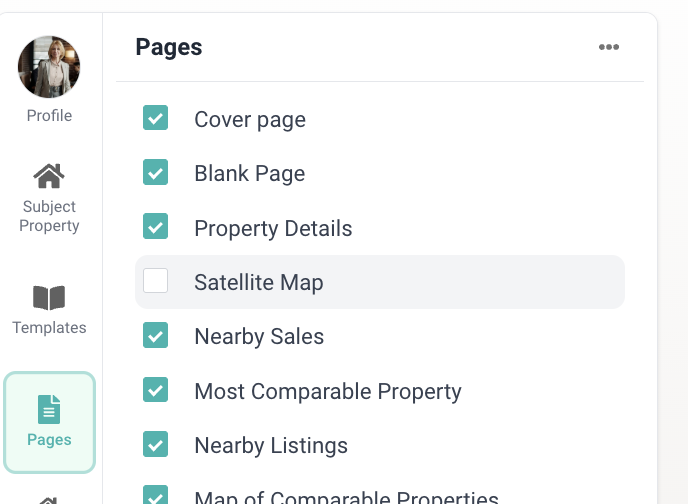
Pages commonly turned off: Client Letter (2 Agents) (in the single-agent version), blank Custom Pages, filler pages, listings pages in areas with few listings, and schools and maps.
Ask Relab to hide pages that should never be used
An unticked page can still be turned back on by any agent. If a page should never appear, email your Account Manager with the template name and the page. This can only be requested by a Manger.
A page hidden in a franchise or branch template stays hidden when an agent saves that template to My Templates.
Agents' existing saved copies are separate, so ask for pages to be hidden before you roll the template out.
7. Plan your page count for printed booklets
If agents print CMAs as booklets, the total page count needs to fit the printing format:
Multiples of 4 for folded and stapled booklets
Multiples of 8 for larger printed booklets, depending on your printer
We can turn on a required page count. Speak to your Account Manager to do this.
Use filler pages to make up the count. Keep a few on-brand filler pages in the template, turned off by default, so agents can add one or two as needed.
The number of comparable pages changes from CMA to CMA, so the total changes too. Ask agents to check the page count in the editor before they print.
Plan pages that sit side by side in a booklet, such as an intro and the agent profile, as a pair.
8. Keep templates current
Replace PDF pages, such as monthly stats, on a set schedule. Delete the old page straight away so agents don't use out-of-date content.
Branch updates don't reach agents' saved copies. Send agents the updated pages as a PDF, or update their templates yourself with Load by Branch Member.
Review templates as part of your monthly manager checklist.
Next steps
CMA Template Management: Guide for Admins and Marketing — step-by-step template setup
Look after your CMA templates — template levels and safe updates
Getting started with Page Builder — a tour of every tool
❓ FAQs
I spent hours on a template and it's gone. Where is it?
If you didn't click Save as New Template, your changes are only in the CMA you were editing. Find that CMA in the CMA Centre and save it as a template from there. If another template was loaded into that CMA afterwards, the work can't be recovered.
Why can't agents edit a page I uploaded?
It was added with Upload PDF, which creates a fixed page. Rebuild it in the Page Builder with your design as the background.
An agent says a text box won't let them type.
Quick Edit is off for that element. Turn it on in the Page Builder, then save it as a new template so the fix applies from now on.
Why is the owner's name cut off?
The text box is too small for a longer name. Make the box bigger or the font smaller, and test it on a property with several owners.
I unticked a page but agents keep turning it back on.
Unticking only turns a page off by default. Ask Relab to hide it in the template.
Last updated: 22 October 2026